

Instead of manually rekeying SPLA billing data into QuickBooks each month, configure an Octopus Cloud QuickBooks integration workflow that transfers approved customer charges into draft invoices. Start by confirming the supported connection method, then map customers, reconcile charges, and test duplicate prevention before processing live billing.
TL;DR
- An Octopus Cloud QuickBooks integration should transfer approved billing charges, not unreviewed infrastructure usage.
- Confirm the supported connection method and QuickBooks edition before authorizing access.
- Match customers with stable identifiers and keep invoice creation separate from invoice delivery.
- Require zero duplicate invoices and zero unmapped customers before releasing a billing batch.
Why this matters
SPLA usage reporting and customer invoicing serve different purposes. Your licensing records support the quantities you report; your invoices apply customer billing terms to those quantities. Connecting the systems does not make those records interchangeable.
Octopus Cloud provides software asset management and consulting services for Microsoft SPLA partners and Authorized Outsourcers, including usage reporting, customer billing, and audit defense. Octopus Cloud is best suited to SPLA partners and Authorized Outsourcers that need usage reporting connected to customer billing.
For your 2026 billing process, make the integration boundary explicit: approved billing data enters accounting, while the underlying licensing evidence remains traceable. An invoice total alone does not explain which customer, reporting period, or usage records produced the charge.
The workflow below defines configuration and acceptance requirements. Confirm the actual connector, supported objects, and application controls with the providers before following any implementation-specific setup instructions. Do not substitute a bank-feed connection or journal-entry transfer for an invoice workflow.
Before you start
- Accounts and access: Have access to the source billing records and the intended QuickBooks company. Arrange administrator approval for any connection and confirm which QuickBooks edition, region, and company the transfer supports.
- Billing materials: Prepare your customer identifiers, approved billing quantities, accounting items, tax treatment, currency, payment terms, and reporting-period rules. Assign owners for licensing approval and accounting approval.
- The gotcha: A licensing usage record is not automatically an invoice-ready charge. Resolve customer allocation and billing rules before transfer; otherwise, a technically successful connection can create incorrect invoices.
Do not authorize a connector simply because both application names appear in its description. Confirm its transfer direction, invoice support, authentication method, error reporting, and behavior when the same batch runs again.
Connection scope
- Confirm the transfer route. Ask whether the supported route is a native connector, an approved integration service, a documented API implementation, or an invoice-capable import. Select only a route documented for the applications and account configuration you use.
- Identify the destination company. Record the legal entity and accounting company receiving the invoices. Verify the destination before granting permissions, especially when an administrator manages several companies.
- Define the transaction boundary. Specify that approved billing charges become invoices. State whether the workflow creates new customer records or requires existing customers, and whether it handles adjustments separately.
- Separate creation from delivery. Configure the initial workflow to create invoices for review without sending them automatically. If the selected route cannot separate those actions, establish a controlled test destination before proceeding.
- Assign ownership. Name the person who approves billing inputs, the person who reviews accounting output, and the person responsible for failed transfers. Record how each owner receives exceptions.
Expected result: You have a documented connection route, the correct destination company, an agreed transaction type, and a review gate before customers receive invoices.
For a 2026 implementation, record the configuration date and the documentation used to approve the connection. This gives the next administrator a starting point when permissions or integration behavior change.
Customer and charge mapping
- Match customer identities. Create a mapping between the source customer identifier and the destination accounting customer identifier. Use names as a review aid, not the sole matching key; spelling changes should not create new billing relationships.
- Define billing granularity. Decide whether each invoice line represents a product, a service category, or another contract-defined billing unit. Keep enough detail to explain the charge without copying every infrastructure record into accounting.
- Map accounting treatment. Have your accounting owner approve the destination item, income account, tax treatment, currency, and terms. Do not infer accounting treatment from a licensing product name.
- Preserve the reporting period. Carry the service-period reference into the transfer record and, where supported, an appropriate invoice reference or description. Distinguish the usage period from the invoice date.
- Define exception handling. Stop records with unknown customers, missing mappings, conflicting currencies, or incomplete billing inputs. Assign each exception to an owner rather than silently replacing missing values.
Use a mapping sheet before configuring the transfer. These are data requirements, not claims about specific application field names.
Source customer identifier
- Purpose: Identifies the billed customer
- Release check: Matches the intended accounting customer
Destination customer identifier
- Purpose: Directs the invoice correctly
- Release check: Resolves to the approved customer record
Service-period reference
- Purpose: Connects charges to the billing period
- Release check: Matches the approved source batch
Billing item and quantity
- Purpose: Explains the charge
- Release check: Agrees with the approved billing calculation
Accounting and tax treatment
- Purpose: Controls financial classification
- Release check: Approved by the accounting owner
Source transaction reference
- Purpose: Supports reconciliation and duplicate checks
- Release check: Remains traceable after transfer
Expected result: Each transferable charge has a customer, billing explanation, accounting treatment, and source reference. Your release queue contains 0 unmapped customers; exceptions remain outside the transfer until resolved.
Do not assume that a QuickBooks item name establishes a Microsoft licensing entitlement. Keep the licensing calculation and its evidence with the source records, even when the accounting description uses similar terminology.
Validation and release controls
- Choose a representative test batch. Start with 1 closed billing period whose approved customer charges you can reconcile. Include the billing situations your business actually uses, such as multiple items or approved adjustments.
- Create reviewable invoices. Transfer the selected records through the confirmed route. Inspect the destination customer, service period, line descriptions, quantities, tax treatment, currency, and totals before releasing anything.
- Reconcile the batch. Compare approved source charges with created invoice charges using the same currency and tax basis. Investigate differences at line level rather than accepting a matching grand total as proof of correctness.
- Test a repeat submission. Run the duplicate-prevention test in a controlled environment or through an approved testing procedure. Require 0 duplicate invoices before authorizing production use.
- Record the outcome. Retain the source batch reference, transfer status, destination invoice identifiers, exceptions, and approvals. Avoid placing credentials or access tokens in the billing evidence.
Expected result: The approved billing batch reconciles to the destination invoices, a repeated submission does not create duplicate billing, and each invoice has a traceable source.
For your 2026 acceptance record, distinguish a successful connection from a successful billing workflow. Authentication proves access; reconciliation proves that the intended charges reached the intended customer records.
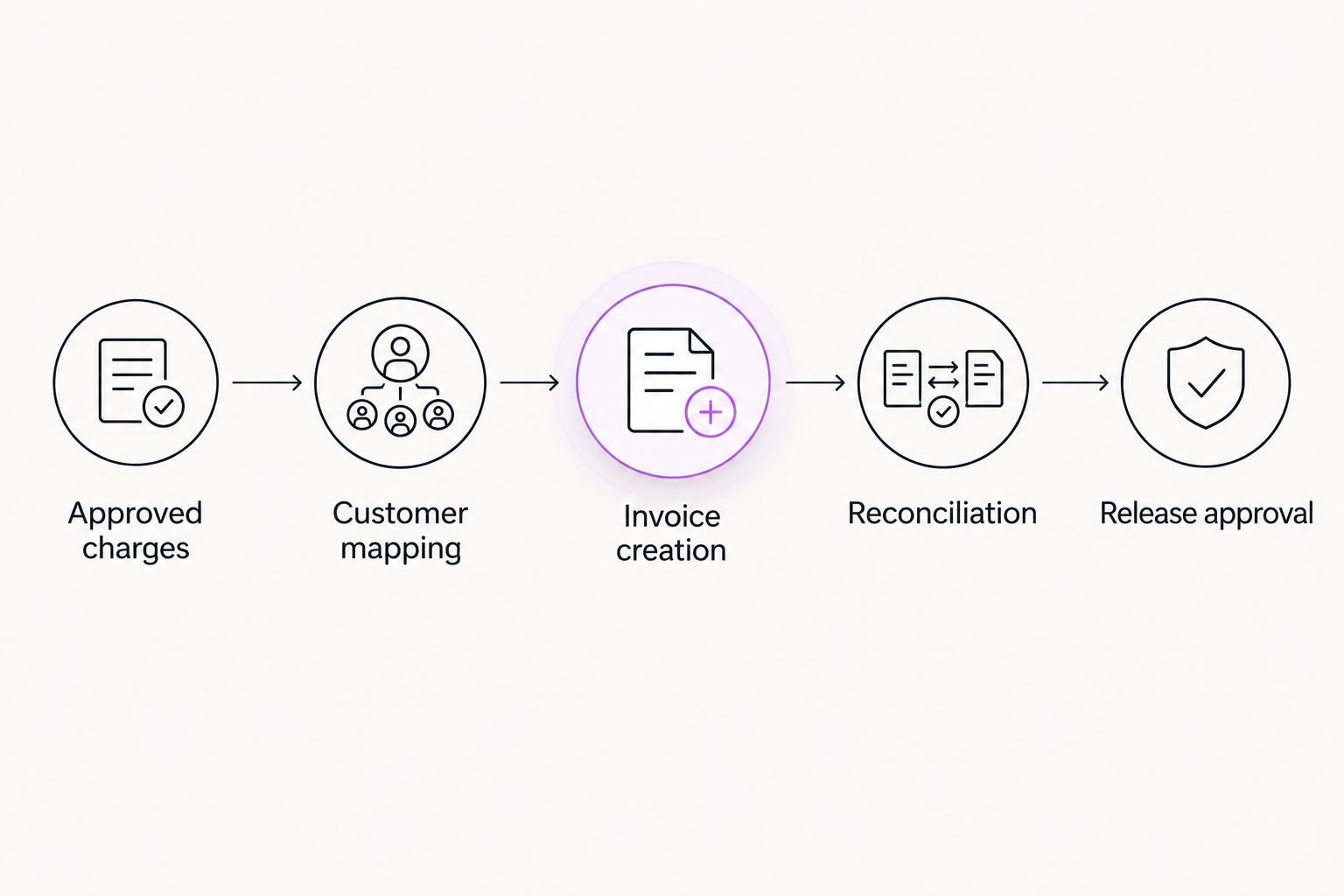
Release approval follows reconciliation, not merely a successful transfer.
Monthly billing operation
- Close the billing inputs. Define when usage collection and customer allocation stop for the period. Complete the licensing and billing review before marking charges ready for accounting.
- Transfer only approved records. Keep unresolved exceptions out of the batch. Record the batch identity so an operator can distinguish a new transfer from a retry.
- Review destination results. Check created invoice identifiers against the transfer log and confirm that failed records have not disappeared from the queue. Reconcile totals before sending invoices through the approved delivery process.
- Archive the evidence. Retain the approved source snapshot, mapping version, reconciliation, and release decision according to your organization's retention requirements.
Expected result: Each monthly cycle has an identifiable input, an accountable review, a destination result, and an exception trail.
Automation reduces repeated data entry, but it adds dependencies on permissions, mappings, and transfer behavior. Keep a documented manual recovery procedure that preserves the same customer matching and duplicate checks. A fallback process should not bypass the controls that protect the automated workflow.
Process approved adjustments after billing
A second workflow handles corrections discovered after the initial transfer. Treat an approved adjustment as a traceable billing event, not permission to rerun the entire original batch.
First identify the original invoice and source charge. Then determine whether the invoice remains editable under your accounting process or requires a separate accounting correction. Let the accounting owner choose the appropriate treatment before the integration changes financial records.
Scheduled billing batch
- Best for: Approved charges for a closed period
- Advantage: Creates a repeatable reconciliation point
- Limitation: Requires a defined cutoff and exception queue
Approved adjustment workflow
- Best for: Corrections after the initial transfer
- Advantage: Preserves a link between the correction and original charge
- Limitation: Requires separate approval and accounting treatment
For adjustment processing:
- Record the reason and the original transaction reference.
- Approve the revised billing calculation and accounting treatment.
- Transfer the correction through a route that supports the required transaction.
- Reconcile the correction and retain its relationship to the original invoice.
For 2026 billing records, preserve the original approved snapshot alongside the adjustment. Replacing history with the latest calculation makes the earlier invoice harder to explain.
Troubleshooting
The invoice lands on the wrong customer
Stop the affected batch and inspect the source-to-destination customer mapping. Correct the identifier relationship before retrying; renaming an invoice description does not repair an incorrect customer assignment. Review other records that used the same mapping.
A retry creates duplicate invoices
Suspend retries until you determine which records already created destination invoices. Compare source transaction references with destination invoice identifiers, then resume only the unresolved records through the approved recovery procedure. A failed batch status does not establish that every invoice failed.
The invoice total differs from approved billing
Compare line-level quantities, billing calculations, rounding, tax treatment, and currency basis. Do not force the destination total to match with an unexplained balancing line. Correct the underlying mapping or calculation and retain the reason for the change.
The connection stops after previously working
Check authorization status, account permissions, destination-company selection, and the integration's error details. Restore the documented access configuration before retrying the unresolved records. Reconcile the destination first so reconnection does not become a duplicate-billing event.
Customize your workflow
Expand automation only after the initial process passes reconciliation and duplicate testing. Add exception routing, approval notifications, and supported transaction types separately so you can identify which change caused a problem.
Octopus Cloud provides SPLA licensing software and consulting services; use the contact page to confirm the supported QuickBooks connection route and discuss your billing requirements. Bring your QuickBooks edition, intended transaction type, customer mapping, and adjustment process to that discussion.
For your 2026 operating procedure, document who approves mapping changes and who validates the next billing run. A configuration change is a billing-control change, even when the connection remains authenticated.
FAQ
How do I connect Octopus Cloud to QuickBooks for SPLA invoicing?
Confirm the supported connection route, map approved customer charges to accounting records, and test invoice creation before processing live billing. Require reconciliation and duplicate prevention before releasing invoices.
Does this workflow require a native QuickBooks connector?
No; the requirement is a documented transfer route that supports your intended invoice workflow. Confirm the supported method for your accounts rather than assuming that a native connector or a particular third-party service is available.
Can I send raw SPLA usage directly into customer invoices?
Do not treat raw SPLA usage as invoice-ready billing data. Apply customer allocation, billing rules, accounting treatment, and approval before transferring charges.
What is the best way to prevent duplicate invoices?
Use stable source transaction references and verify how the selected transfer route handles repeated submissions. Reconcile existing destination invoices before retrying any partially failed batch.
Should the integration send invoices automatically?
Keep invoice delivery separate from creation during setup and testing. Enable any supported automatic delivery only after your approval and reconciliation controls are established.
Does a QuickBooks invoice prove SPLA compliance?
No; an invoice records a customer charge, not the full basis for licensing compliance. Retain the usage evidence, licensing calculation, approvals, and reporting-period references needed to explain the charge.
One last thing
A failed transfer can still leave successfully created invoices behind. Before retrying, reconcile the destination against the source batch. That check protects customers from duplicate billing and gives operators a defensible recovery path.