
Instead of rebuilding SPLA usage numbers in a spreadsheet every month and keying them into invoices by hand, connect Octopus Cloud to ConnectWise Manage so usage data from Octopus lands in your billing process already matched to the right customer and product. This guide covers the octopus cloud connectwise integration workflow for 2026: what to prepare, how to map data, how to verify it, and what breaks.
TL;DR
- The Octopus Cloud ConnectWise integration moves SPLA usage into ConnectWise Manage billing without manual re-entry.
- Map customers and products first. Mismatched names cause most failed syncs.
- Run one billing cycle in parallel with your manual process before you switch over.
- Confirm the connector and its settings with Octopus before you start; this guide does not assume field names.
Why this matters in 2026
SPLA billing breaks at the handoff. Usage is calculated in one system, the invoice is built in another, and a person copies numbers between them. Every copy is a chance to under-bill a customer or over-bill one, and both create audit and dispute risk.
Octopus Cloud is a software asset management platform for Microsoft SPLA partners and Authorized Outsourcers. It automates usage reporting, customer billing, and audit defense. ConnectWise Manage is a professional services automation (PSA) platform where companies, agreements, and invoices live. Connecting the two puts the usage record and the invoice line on the same data path.
Verdict: if you bill SPLA customers through ConnectWise Manage every month, connect it. If you have a handful of customers and one flat fee each, the setup time may not pay back in 2026.
Before you start
- Access on both sides. You need an administrator-level login in your Octopus Cloud account and an account in ConnectWise Manage that can create API credentials and read companies, agreements, and products.
- A clean customer list. Every customer you bill for SPLA licensing must exist in ConnectWise Manage as a company, and the same customer must be identifiable in Octopus. Fix duplicates and renamed customers before you connect anything.
- A product catalog you control. Decide which ConnectWise Manage catalog items represent each licensed product you resell. Create missing ones first.
- The gotcha: do not connect against a live billing period. Pick a period that is already invoiced, or a test company, so your first sync cannot create real invoice lines.
Confirm with Octopus that the ConnectWise Manage connector is enabled for your account and ask which settings it exposes. Setting names change between releases, so follow the labels you see in your own account rather than any screenshot older than 2026.
Set up your ConnectWise Manage access
The connector needs permission to read and write in ConnectWise Manage. Give it its own identity instead of borrowing a person's login.
- In ConnectWise Manage, create a dedicated API member for the integration.
- Generate API keys for that member and store them in your password manager.
- Limit the member's security role to the records the sync touches: companies, agreements, agreement additions, and the product catalog.
- Note your ConnectWise Manage site URL and company ID. The connection form asks for them.
Expected result: a named API member in ConnectWise Manage whose activity you can audit separately from any employee.
Connect Octopus Cloud to ConnectWise Manage
- Open the integration area of your Octopus Cloud account and choose ConnectWise Manage.
- Enter the site URL, company ID, and the API keys from the previous step.
- Save the connection and run the connection test if one is offered.
- Read any error text literally. An authentication error means the keys or company ID are wrong. A permission error means the API member's role is too narrow.
Expected result: the connection shows as active, and Octopus can read your ConnectWise Manage companies. If it cannot list them, stop here and fix access before you map anything.
Map customers and products
Mapping is where the integration succeeds or fails. Octopus knows a customer's licensed usage. ConnectWise Manage knows which company gets the invoice and which catalog item the line belongs to. The mapping ties the two together.
Match customers
- Pair each Octopus customer with exactly one ConnectWise Manage company.
- Resolve any customer that matches two companies, such as a parent and a subsidiary, by deciding which company receives the invoice.
- Leave inactive customers unmapped so they cannot generate lines.
Match products
- Pair each licensed product you bill, such as a Windows Server or SQL Server license type, with one catalog item in ConnectWise Manage.
- Keep one catalog item per billable unit. Do not collapse two license types into one item to save time, or you lose the line-level detail you need in an audit.
- Check the unit of measure on each item. A per-core item and a per-user item are not interchangeable.
Expected result: every active customer and every billed product has a counterpart, and nothing is left in an unmatched list.
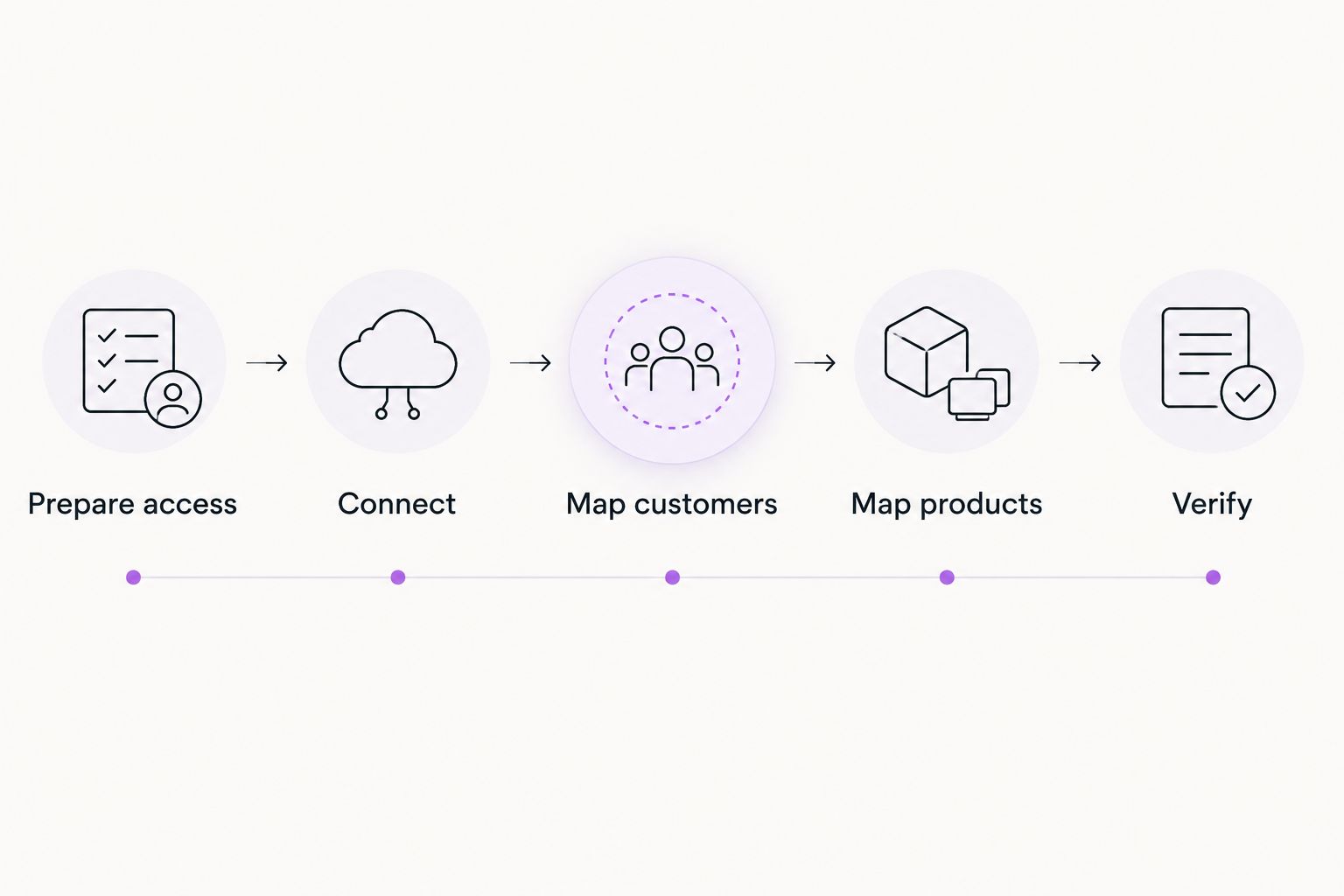
Mapping comes before any usage data moves.
Verify the first sync
Run the first sync against the already-invoiced period or the test company you chose earlier. Then compare, line by line:
- The quantity in ConnectWise Manage against the quantity in Octopus for three customers: your largest, your smallest, and one with an unusual product mix.
- The product on each line against your catalog mapping.
- The company on each line against the customer you expected.
If all three match, repeat the check across the rest of the customer list. If one fails, fix the mapping behind it and run the sync again. Do not hand-edit the ConnectWise Manage lines to make them match, because the next sync overwrites or duplicates your edit.
Expected result: quantities, products, and companies in ConnectWise Manage match Octopus for every customer you sampled.
Variant: update billing whenever usage changes
SPLA usage moves during the month. Customers add servers, remove users, and migrate workloads. A one-time sync at month end is the minimum setup. The second variant is a recurring sync, so agreement additions in ConnectWise Manage track usage through the month instead of arriving as a surprise at invoice time.
- Decide the cadence with your billing team. Align it with your own invoicing date, not a calendar default.
- Check how Octopus applies changes to existing lines: updating a quantity is safe, while creating a second line for the same product is not.
- Run one full billing cycle in parallel with your manual process. Compare totals before you retire the manual one.
This also supports audit defense. When Microsoft or an auditor asks how you arrived at a quantity, the usage record in Octopus and the invoiced line in ConnectWise Manage tell the same story.
Troubleshooting
- Customers missing from the mapping list. The ConnectWise Manage company is inactive, or the API member's role cannot see it. Reactivate the company or widen the role.
- Authentication fails after it worked. API keys were regenerated or the member was disabled. Issue new keys and update the connection.
- A product posts to the wrong catalog item. Two products share a similar name and the mapping was set on the wrong one. Remap it and rerun the sync for that customer only.
- Duplicate lines on an agreement. Someone added the same product by hand. Remove the manual line and let the sync own that product.
- Totals are off by one customer. That customer is mapped to a parent company while the invoice goes to a subsidiary. Fix the mapping, not the invoice.
Customize your workflow
Once the sync is stable, extend it:
- Add the customers you left out of the first pass, in small groups.
- Review catalog items quarterly so new Microsoft products have a place to land.
- Use the same usage data for your SPLA monthly reporting, so the number you report and the number you bill come from one source.
To see how Octopus Cloud handles usage reporting, billing, and audit defense for SPLA partners, start at octopus.cloud.
See the integration in a demo
Walk through usage reporting and billing automation for SPLA.
FAQ
What does the Octopus Cloud ConnectWise integration do?
It connects SPLA usage data in Octopus Cloud to billing records in ConnectWise Manage. That removes manual re-entry of quantities. Mapping customers and products is what makes the data land on the right invoice line.
Who should connect Octopus Cloud to ConnectWise Manage?
Microsoft SPLA partners and Authorized Outsourcers who invoice through ConnectWise Manage. The more customers and products you bill each month, the more manual work the connection removes.
What do I need before I start?
You need admin access in Octopus Cloud, an API member in ConnectWise Manage, a clean company list, and catalog items for each billed product. Missing catalog items are the most common blocker.
Is it safe to run the first sync on live billing?
No. Run it against an already-invoiced period or a test company. Verify quantities, products, and companies before you touch a live billing cycle.
Why do my ConnectWise Manage quantities not match Octopus?
The usual cause is a customer or product mapped to the wrong record. Fix the mapping and rerun the sync. Do not edit the invoice lines by hand.
Can usage sync more than once a month?
Confirm the available sync cadence with Octopus for your account. A recurring sync keeps agreement additions current, but only if updates change existing lines instead of creating duplicates.
Does the integration help in a Microsoft audit?
It gives you one traceable path from measured usage to invoiced quantity. That path is what you show an auditor, though the integration does not replace your SPLA reporting obligations.
One last thing
Most failed integrations in 2026 trace back to the catalog, not the connector. If one catalog item covers two license types, no sync can bill them separately. Split your catalog before you connect, and the rest of the setup is mechanical.